Table of Contents
- General Information
- How to Upload Vouchers
- How to Check if Vouchers are Registered
✅ General Information
1. Voucher Upload Feature Guide
- You can upload vouchers from the partner page before or after reservation confirmation.
- Features for adding, deleting, and previewing vouchers are provided.
2. Guide for Reservations Eligible for Voucher Registration
-
Only reservations made in the new system can use the voucher upload feature.
- New system reservations (reservation number starts with EXP): Voucher upload feature available O
- Old system reservations (reservation number starts with TNA): Voucher upload feature available X
3. Voucher Registration Specifications Guide
- Voucher files can be registered up to 10mb maximum per file.
- Supported file formats are JPG, JPEG, PNG, PDF files only.
⚙️ How to Upload Vouchers
💡 [Important]
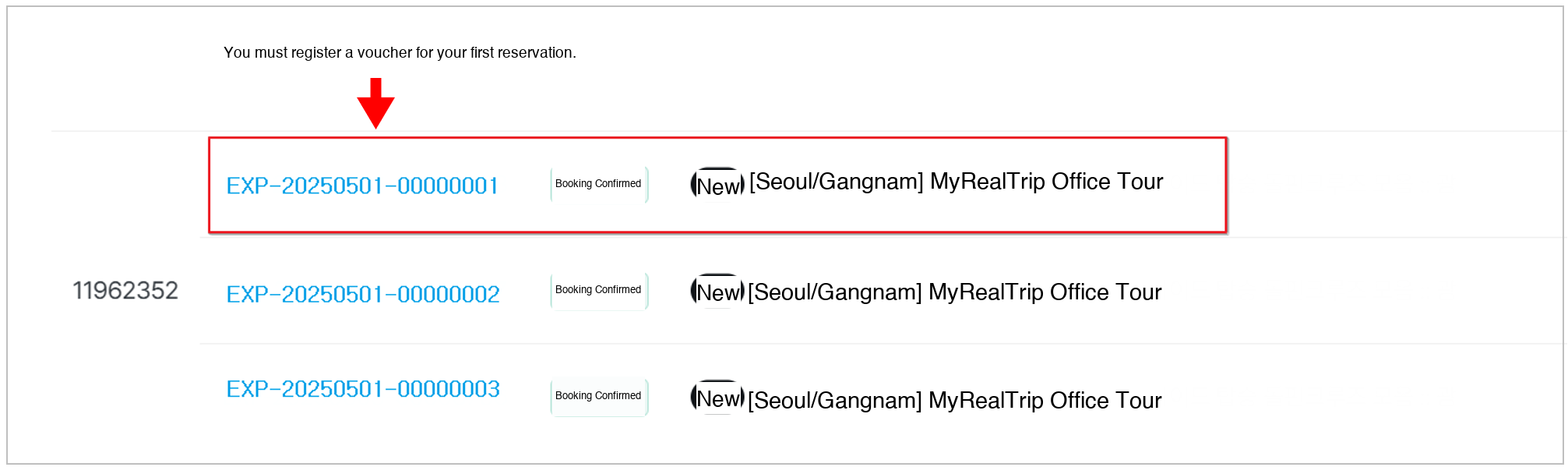
- If one order has multiple reservations (N options) but only one voucher, please register the voucher to the primary traveler (first reservation).
- (Example) Voucher registration example
- Order number: 2343233253, 3 option reservations: EXP-20250501-00000001, EXP-20250501-00000002, EXP-250501-00000003 created.
- Voucher upload should be registered to the first reservation EXP-20250501-00000001 for travelers to see.
|
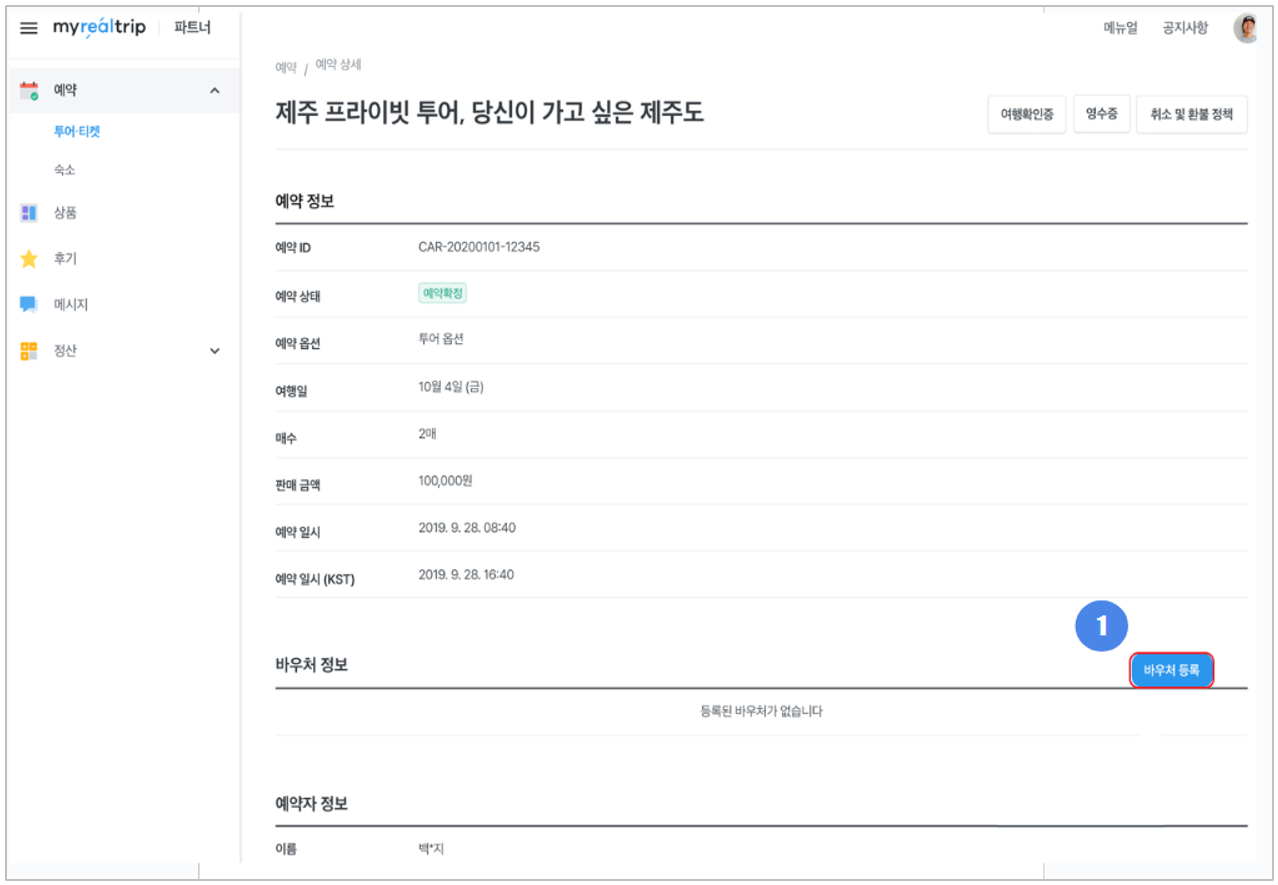
Step 1. Reservations → Tours·Tickets → Access Reservation Details → Click Register Voucher
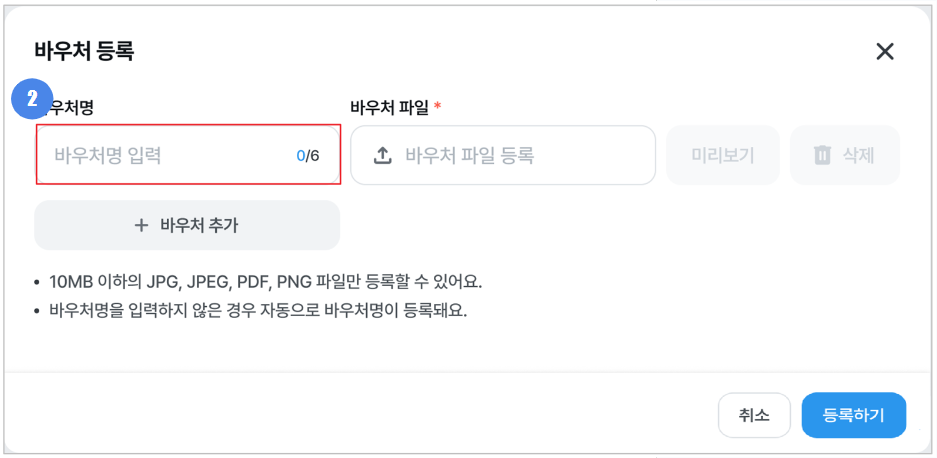
Step 2. Enter Voucher Name (Registration)
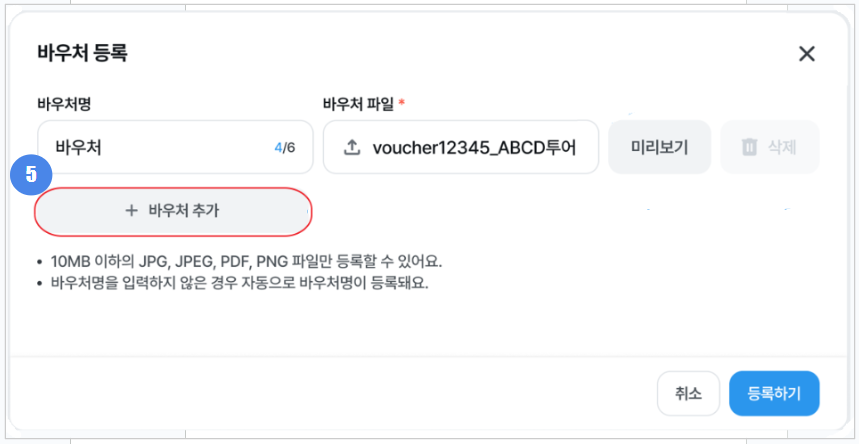
- Voucher name can be entered up to 6 characters maximum.
-
If no voucher name is entered, a voucher name will be automatically assigned.
- If there are multiple vouchers, they will be registered as Voucher 1, Voucher 2 in order.
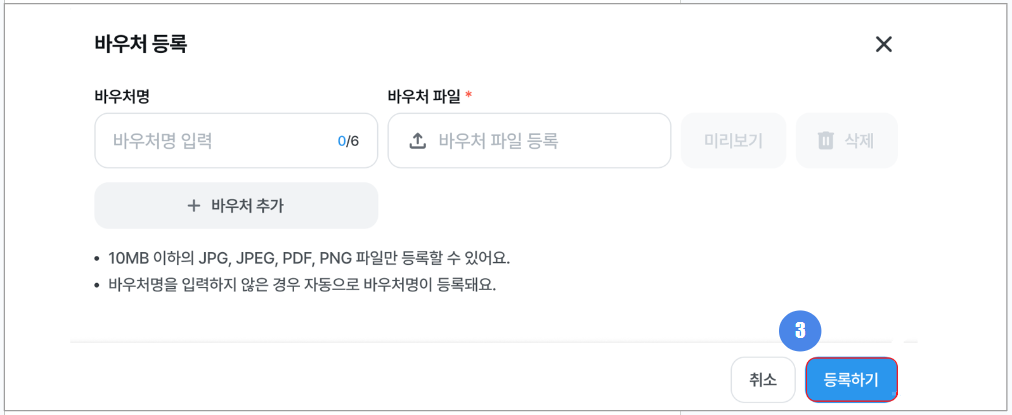
Step 3. Click Register
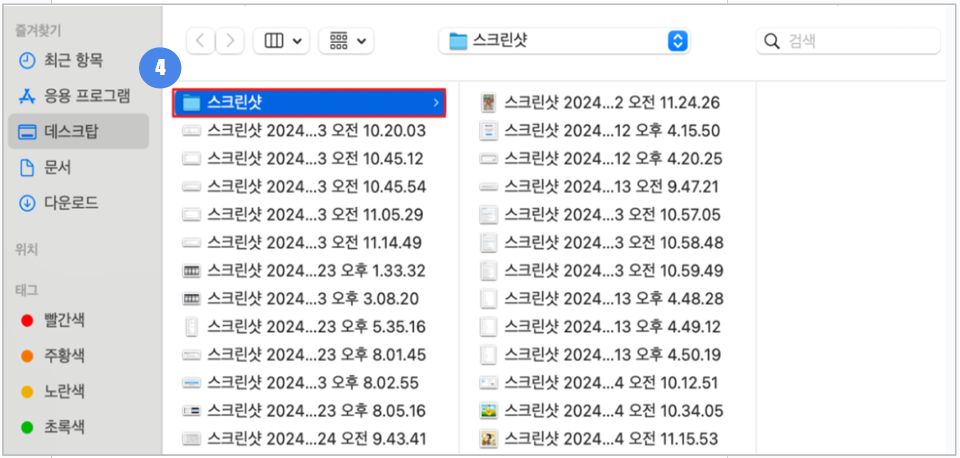
Step 4. Check and Select Voucher File Saved on PC
- Only voucher files of 10mb or less can be registered.
- Only PDF, JPG, JPEG, PNG files can be registered.
Step 5. (If multiple vouchers) Click Add Voucher
- If you have only 1 voucher, please proceed to Step.7.
|