[BNB] Rate & Inventory Management Screen Improvements
We have improved the rate and inventory management screen to make it easier to read and edit. The screen is divided into two main views.
Bulk rate/inventory edit (monthly calendar): Update rates and sale status across multiple dates at once.
Default view (weekly grid): The weekly view you see first when you open [Rate/Inventory Management].
1. Bulk rate/inventory edit (monthly calendar)
This view lets you update rates and sale status across multiple dates at once.
How to get there
On the Partner page, follow the steps below.
[Rate/Inventory Management] → [Manage] button for the accommodation → [Bulk rate/inventory edit] button at the top right of the screen
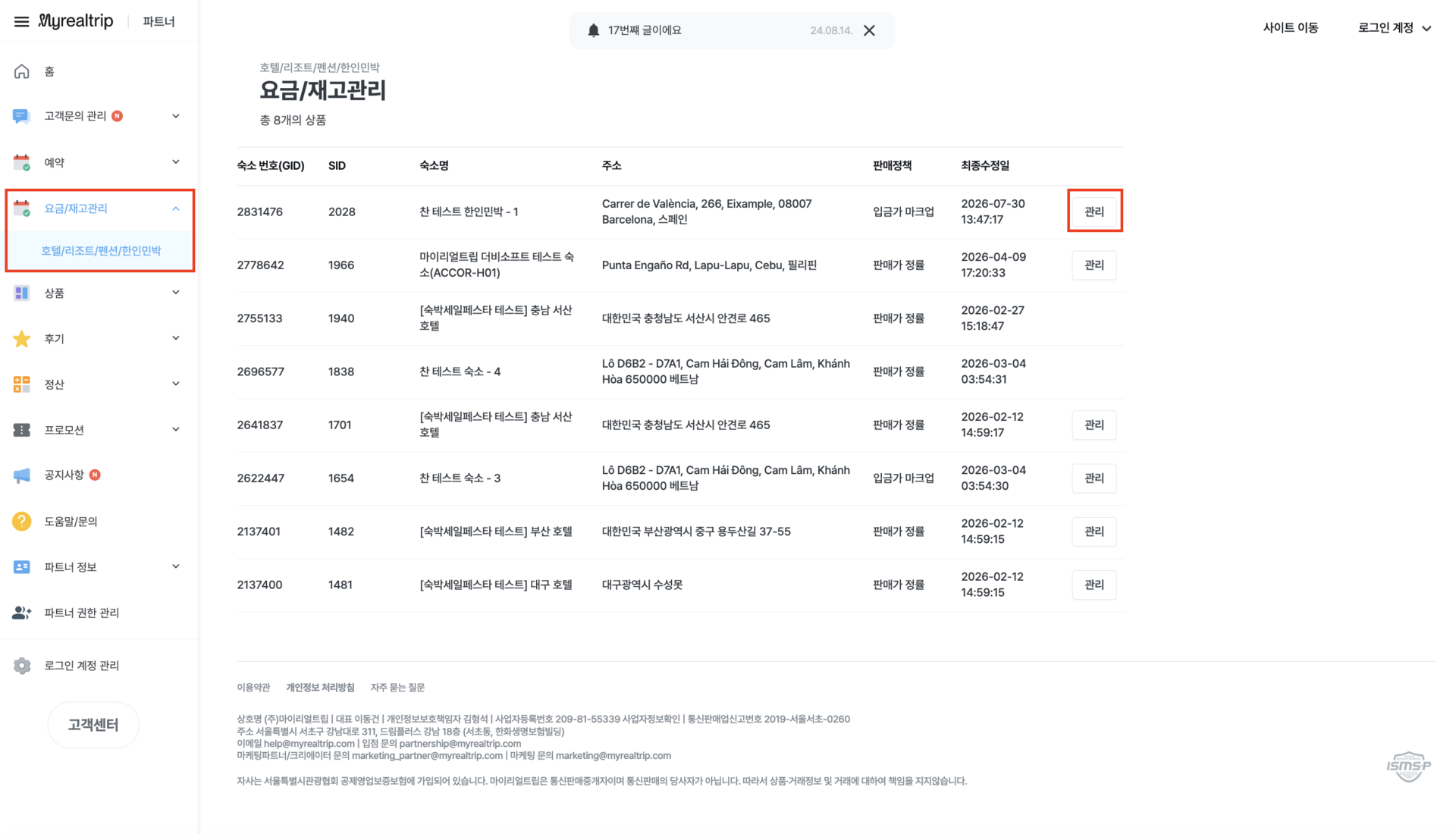
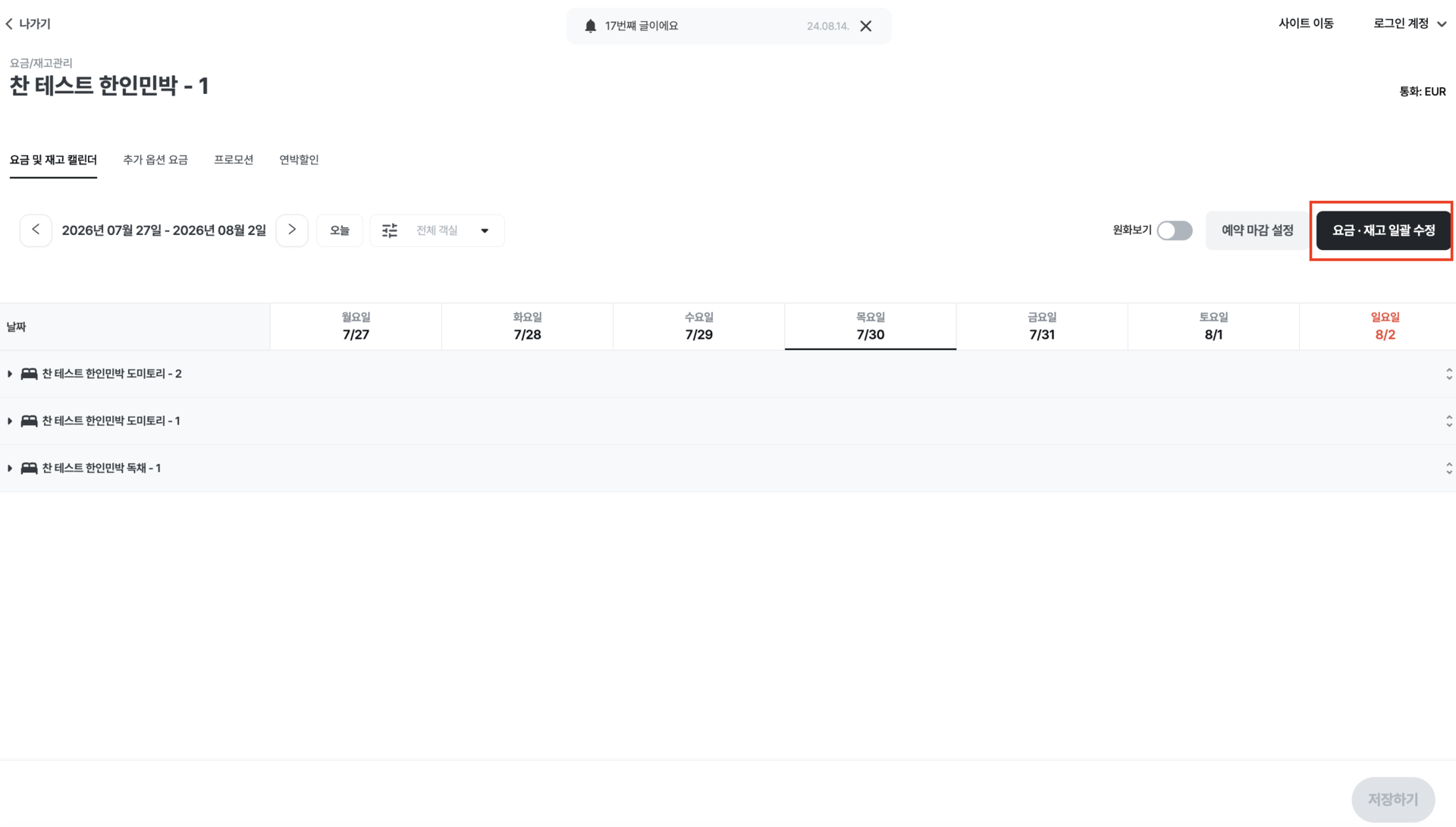
Screen layout and how to use it
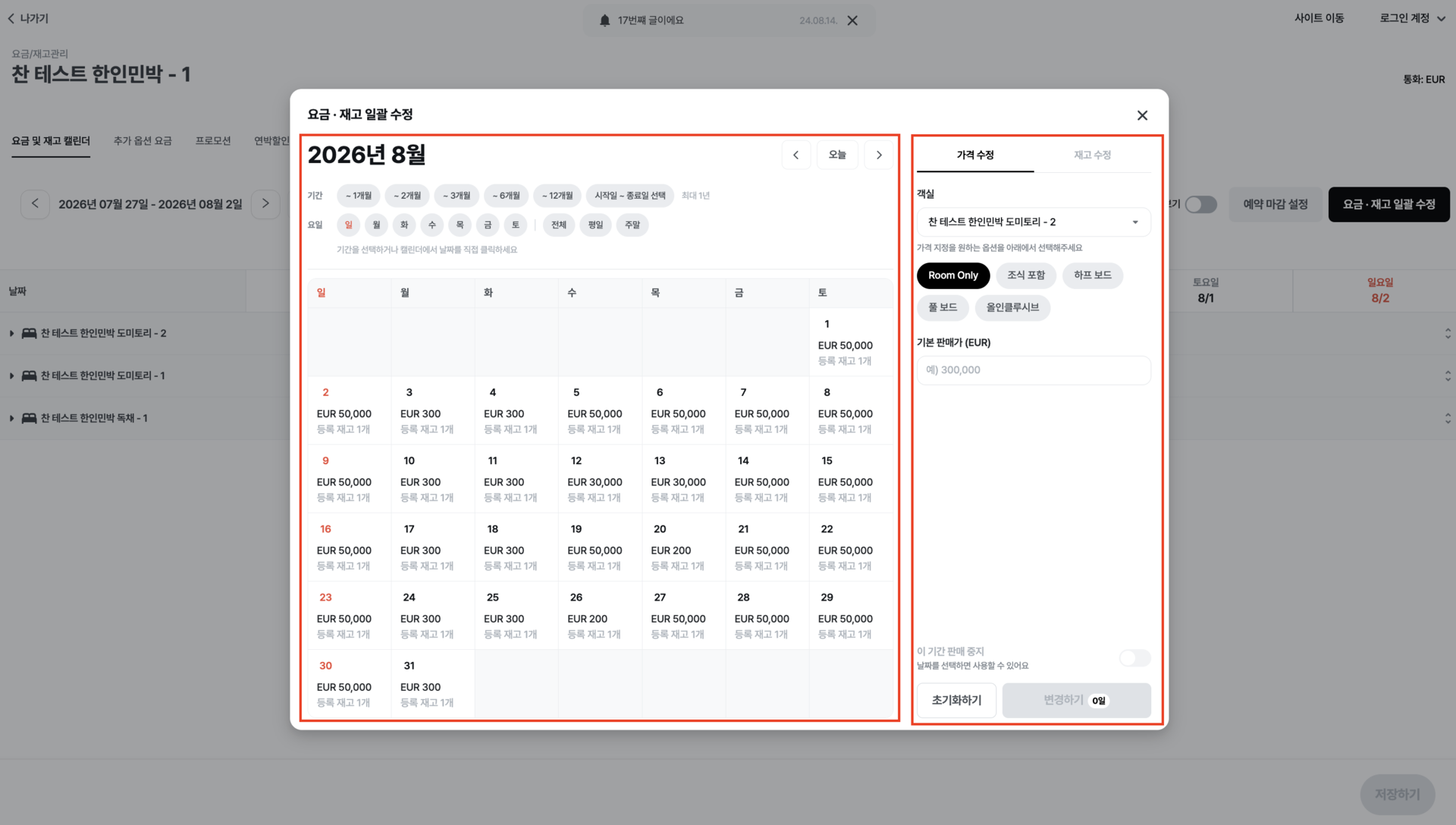
The screen consists of a monthly calendar on the left (for checking status and selecting dates) and an edit form on the right. The edit form is split into Price edit and Inventory edit tabs.
Item |
Details |
|---|---|
Room/option selection |
Selecting a room updates the calendar on the left to reflect that room. If there are two or more options, select one option as well. The sale price and sale suspension apply only to the option you select. |
Period |
Choose from the period buttons (~1 month / ~2 months / ~3 months / ~6 months / ~12 months), or use 'Select start date ~ end date' to specify a custom date range. (The default is '~1 month'.) |
Day of week |
Select the days you want to apply changes to. You can tap each day individually (Sun / Mon / Tue / Wed / Thu / Fri / Sat), or use the All / Weekdays / Weekends buttons to select them all at once. |
Selection summary and clear all |
A summary at the bottom shows the selected period, days of the week, and total number of days selected (for example: '2026.07.29 ~ 2026.08.28 · All · 31 days selected'). Click [Clear all] on the right to deselect all chosen periods, days, and dates at once. |
Sale price |
Enter the sale price you want to set. Once entered, a confirmation message will appear below, such as 'We'll change the sale price for the selected dates to EUR 30.' |
Sale suspension |
When enabled, the selected dates and option will be suspended from sale and hidden from travelers. Suspended dates are shown with a diagonal strikethrough on the calendar. |
Apply (n) |
The button shows the number of dates you have selected. Click it to apply changes immediately to the selected dates and option. A completion message will appear briefly. |
Calendar date cell display
Selected dates: Highlighted in blue.
Dates with sale suspended: The sale price is shown with a diagonal strikethrough.
Past dates: Shown with a grey background and grey text. You can view the price, but editing is not available.
※ The sale price you are about to set is not shown as a strikethrough on the calendar. Instead, it is displayed as a confirmation message as described in the 'Sale price' item above.
2. Default view (weekly grid)
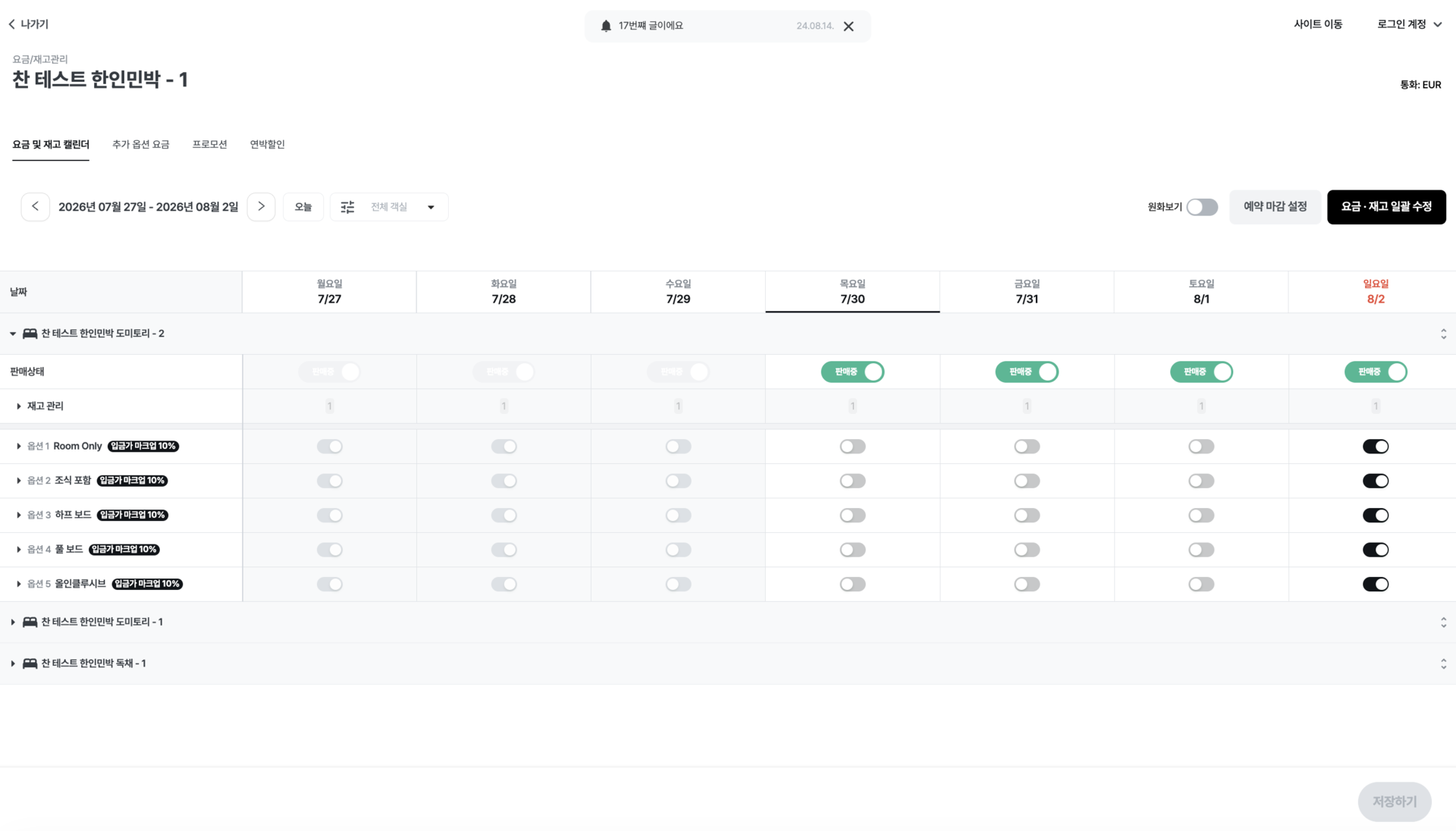
This is the weekly view you see first when you click the [Manage] button for an accommodation in [Rate/Inventory Management].
Item |
Details |
|---|---|
Top bar controls |
Includes the currency display (KRW), a room filter (to view only selected rooms), the [Today] button, and weekly navigation arrows (‹ ›). |
Top-right buttons |
The [Booking deadline settings] button (renamed from the previous 'Cutoff') and the [Bulk rate/inventory edit] button. |
Expand and collapse rooms |
Click a room row to expand it; click again to collapse it. An Expand all / Collapse all control has also been added on the right. |
Sale status |
The room sale status (parent) and option sale status (child) are linked. Turning off the room sale status for a date automatically turns off and locks all child options for that date. Turning it back on restores each option to its previous state. |
Sale price |
If only a base rate is set, that amount is shown directly on the screen. If additional guest charges or other rates are also set, expand [Rate settings] to review them. |
Advanced settings |
Expand [Advanced settings] for each option to configure the following four items: CTA (no check-in), CTD (no check-out), minimum stay, maximum stay. |
Booking deadline settings |
This is the same feature as the previous 'Cutoff'; only the name has changed. It automatically closes bookings for dates with an imminent check-in, from the point you specify. |
5 inventory statuses
Inventory is divided into the five statuses below. Each status is shown with a description on the screen. The terminology is the same as before.
Inventory status |
Description |
|---|---|
Registered inventory |
The quantity you have registered for sale |
Used inventory |
The quantity consumed by confirmed bookings |
Pre-held inventory |
The quantity temporarily held while a traveler is completing payment |
Blocked inventory |
The quantity blocked from sale |
Remaining inventory |
The quantity currently available for booking |
3. Mobile view
What you can do on mobile and the terminology used are the same as on desktop. Only the layout differs slightly.
Bulk rate/inventory edit: Tap the [Bulk rate/inventory edit] button to open it. Switch between Price edit and Inventory edit using the tabs at the top of the screen.
Default view: Tap a room to see each date listed as a single row showing the date, day of the week, sale price, and remaining quantity. Remaining quantity is color-coded: grey when availability is comfortable, orange when 1 or fewer remain, and red when sold out. Tap the arrow (›) to the right of a date to open an edit panel for that date from the bottom of the screen.
How to contact Partner Support
Inquiries previously handled through the KakaoTalk channel have been consolidated into the Partner Support Center.
① Submit via 1:1 chat
Click here to select your inquiry type and be connected automatically to the relevant team.
② Submit via the Partner page
Log in to the Partner page and click the [Help Center] button at the bottom left of the screen to open the inquiry form.
Support hours: Weekdays 09:00-18:00 (excluding weekends and Korean public holidays) · Inquiries received outside support hours will be answered in order on the next business day.