[BNB] How to Use the Room Option Duplicate Feature
When adding a new option to a room, you can duplicate an existing option to create one quickly without starting from scratch.
✅ This feature is available for BNB products.
1. What is "Option Duplicate"?
This feature creates an exact copy of an existing option. You can then adjust the rate and conditions to sell the same room under different terms.
Previously, the default option created at the start could not be copied or edited. It has now been updated so that the default option can also be duplicated and edited.
① What happens to inventory and pricing when I duplicate an option?
Inventory: A duplicated option shares the inventory of its room, so no separate inventory setup is needed.
Pricing: You must set a sale price for the duplicated option. Each option requires its own price.
② How does a room with multiple options appear to travelers?
On the accommodation detail page, one room is displayed, with its options listed below it. This works the same way as seeing multiple options under a single room on a hotel detail page.
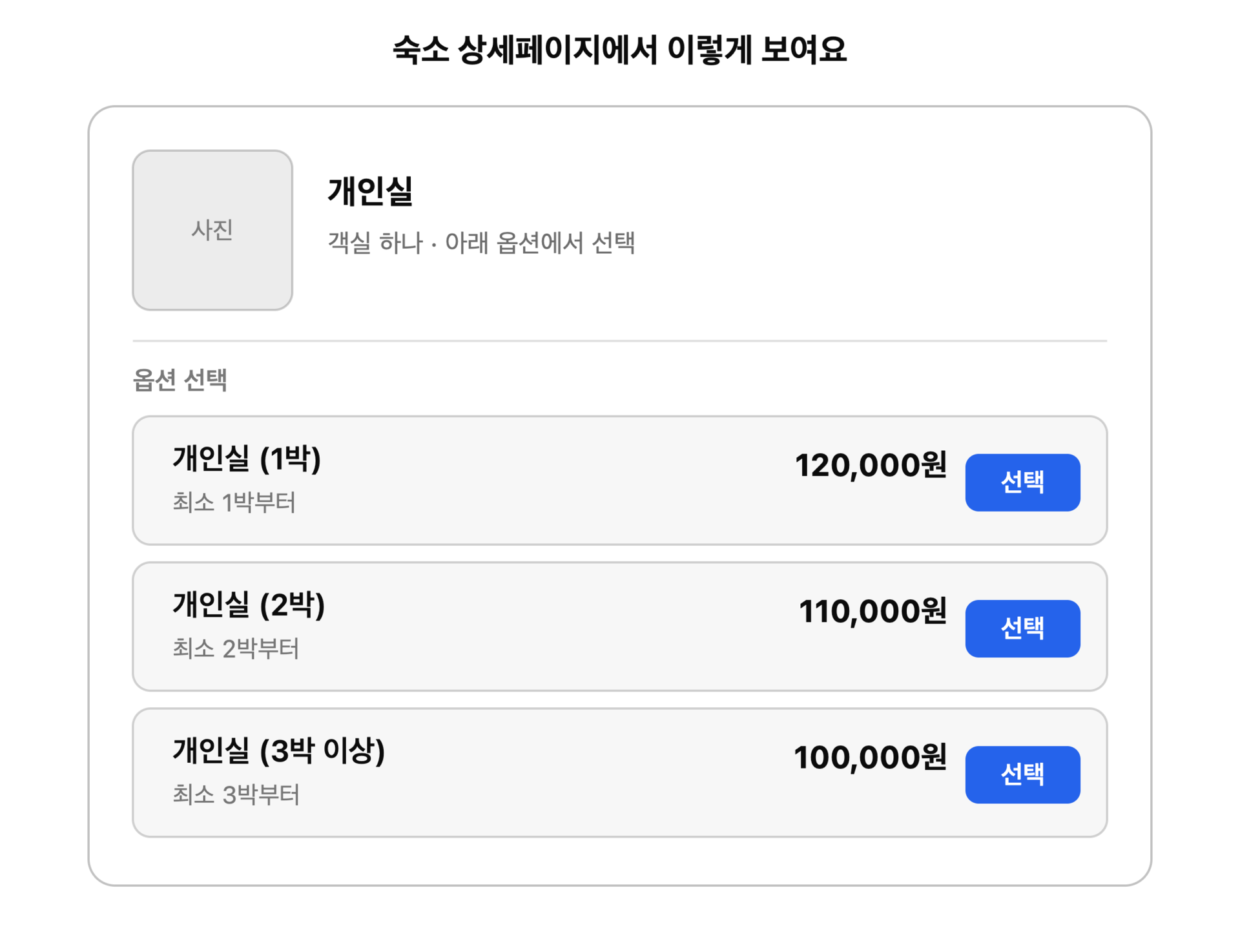 This is how it looks on the accommodation detail page
③ How can I make the most of this feature? (Examples)
-
Even for the same room, you can set different conditions or benefits per option.
Vary the minimum stay, for example: Private Room → Private Room (1 night) / Private Room (2 nights) / Private Room (3 nights or more)
Vary the included benefits, for example: Private Room (Standard) / Private Room (Welcome drink included) / Private Room (Late checkout included)
Note: Meals are configured at the accommodation level, not per room, so they cannot be set individually per option.
(Reference) Available "Included Benefits"
Room: Extra bed & bedding / Extra bedding / Free room upgrade / Room upgrade discount
Check-in/Check-out: Early check-in / Free late checkout / Late checkout discount / Luggage storage available
Gifts: Welcome drink / Welcome gift / Free minibar / Sightseeing discount coupon
Facilities: (Free or discounted) Swimming pool / Ski resort / Lounge / Massage / Spa / Fitness center / Golf course / Water park
Services: Free shuttle bus / Free valet parking
④ What if I no longer want to use an existing room?
Change the room's sale status to "Sale suspended". Any future bookings already made for that room will continue to appear normally in the booking calendar.
2. How to Duplicate an Option
Step 1. Open the Option screen
In the Partner page, go to [Product] → select the accommodation → [Room] → [Option].
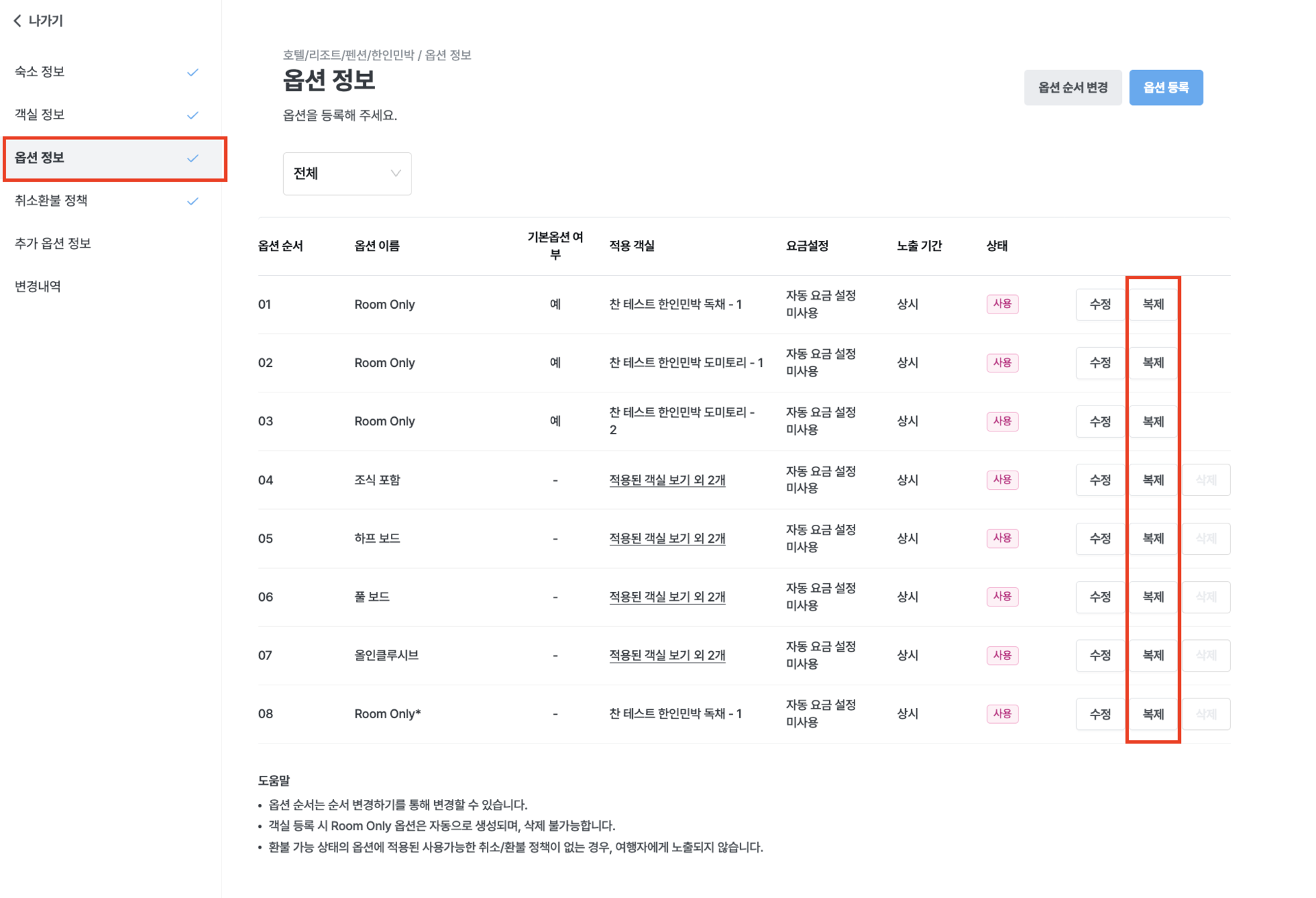
Step 2. Click Duplicate
Click [Duplicate] next to the option you want to copy.
Step 3. Review and edit the copied option
Once copied, a new option is created. Update the name and any other details you need, then save.
A helpful tip: When you need to create several similar options, build one carefully first, duplicate it, then adjust only the name and a few details. It's much faster.
🙋♀️ Want to delete a duplicated option?
Options cannot be deleted immediately. You need to set them to "Not in use" first before deletion becomes available.
Click the [Edit] button for the option you want to delete.
Change the sale status to "Not in use".
The [Delete] button will become active, and you can click it to remove the option.
💡 The [Delete] button is not available while an option is active. Please set it to "Not in use" before deleting.
How to Contact the Partner Support Center
Inquiries previously handled through the KakaoTalk channel have been consolidated into the Partner Support Center.
① Submit via 1:1 chat
Click here to select your inquiry type and be connected directly to the relevant team.
② Submit via the Partner page
Log in to the Partner page, then click the [Help Center] button at the bottom left of the screen to open the inquiry form.
Support hours: Monday to Friday, 09:00-18:00 (excluding weekends and Korean public holidays). Inquiries received outside of these hours will be answered in order on the next business day.